25.9.09


24.9.09
IBM Port Replicator II: a kind of review
recently I purchased - rather occasional, this story comes bit later - Port Replicator II by IBM (modell 74P6733) for my laptop T43p. While waiting for the device to arrive, I searched Google for the reviews and opinions - but found nearly nothing. This surprised me a bit, and I decided to
feel the gap and post a kind of review for the device. I don't want to be extremely precise and objective, I just tell you how it looks and feels like.
You may find the photos of the device (sorry for the quality, was made by the cell phone) in my album "My desktop / T43p & Co." on my Picasa page: http://picasaweb.google.com/andrey.grigorev
How it looks like...
So, as you may see, the Port Replicator II (74P6733) is quite small, black (what else should one expect from IBM???) and light. It's smaller than the laptop itself, so it's completely hidden when laptop is on the replicator.
All ports are on the back side, on the top of replicator there are 2 buttons - power on/off and undock/eject laptop.
The replicator raises laptop a bit (approx. 2 cm). It will make the typing more comfortable, if you use the internal keyboard of the laptop.
How it feels like...
Earlier, when I had to take my laptop away from the desk, I had to disconnect all the cables (and when I returned back, I had to plug them back). It was boring. Really. Network cable, boxes, eventually keyboard, power cable, external drive... All that stuff I had to pull out and then plug in again. Now, with the replicator, I have to press one button to release the laptop from all cables. And - what is more important - I need only one movement to attach all of them back. (Even PS/2 ports are recognized and "hot-plugged" - yesterday I tried it.)
As you may see on the photo, the replicator is equipped with the following ports: PS/2 (mouse + keyboard), COM, LPT, VGA, DVI, RJ11 (modem), RJ45 (Ethernet), USB 2.0 and port for the floppy drive (proprietary interface of IBM). Siince I have no external monitor, I could not test the VGA- and/or DVI-ports. But the rest just work - under both Windows and Linux.
Exotic ports - like Firewire - are not available, but - to be honest - when have you used any Firewire device for the last time?
Some people said, 1 USB 2.0 port was not enough. Actually, together with laptop you have 3 of them. Isn't it enough? Besides I have a USB 1.1 hub with 2 ports (in the form of PCMCIA card).
So, in total I have 5 ports - and I'm quite satisfied with it.
Conclusion
With this port replicator, you get a set of standard ports, which allow you to convert your laptop into desktop machine. If you are not satisfied with 3 USB 2.0 ports, you should think about
purchasing the Mini-Dock II (model 2878) - it has 4 ports.
The price you pay for it is a room on you desk. Port replicator occupies certain room.
So, that's all. If you have any questions, feel free to ask them - I will try to answer.
21.9.09
Short update
I've been silent for quite a long time... Due to the different reasons - private and my work... But I plan to post a couple of messages soon... I have something to tell... :-)
----
Vsem privet,
ya dolgo ne pisal, po raznym prichinam - lichnym + moya rabota... No ya hochu v blijayshee vremya napisat paru novyh postov...
Do vstrechi...
9.4.09
Olivetti SIMPLE_WAY Bluetooth: setup and impressions
sometime ago I bought at eBay used printer Olivetti SIMPLE_WAY. It has built-in Bluetooth, and this was the only reason for buying (I hate cables and try to exploit the Bluetooth on my laptop as much as possible). I paid something like 32 EUR (incl. delivery). The black inks were empty (so, I had to buy it extra - 28 EUR @eBay for the new cartridge (IN 502) inclusing delivery).
After 1 week of waiting it arrived. I cannot say it was a love from the first sight. The colour of the deice - white - doesn't actually match the colour of other deices I have (black laptop and black boxes). Besides, I underestimated the size of the printer. It was optically too big for my desk. After trying a couple of combinations I finally left it on the desk container near the table - close enough to connect with the cable, but not directly on the desk.
(1) Setting it up...
As I said, the printer is equipped with a Bluetooth module. It sounds cool, but it's a marketing trick. The problem is that via Bluetooth this device acts like a printer only. So, no way to scan, copy or print photos. Just an ordinary printer... OK, it's too late to object.
Another issue, which bothers me, is a Linux compatibility. The device is NOT Linux-compatible. Neither printer nor scanner can be recognized and used. So, keep in mind - this is 100% Windows-oriented device. At
least, now...
The printer setup can be divided into two steps. Step 1 is USB-based setup. It's quite straightforward and is well described in the user's guide of the printer. Mainly, you install two pieces of software - the driver and
maanagement application, which allows you to perform all the functions (print photos, scan, and copy). Besides, you get a couple of utilities for printer's maintenance.
Step 2 is making Bluetooth connection between PC/laptop and printer. And this is much more fun, than USB! I suppose, that the steps described in the guide, were oriented on the Microsoft's Bluetooth stack, coming with SP2 of the XP. Since I have a Widcomm stack, those steps didn't work for me. After several evenings of tests I finally managed to get it running. So, here are the steps - for those who may be interested:
- Download and install the newest Widcomm stack (in my case I got it from the the support site of Lenovo);
- Start "Install new printer..."-wizard from Control Panel, section "Printers and faxes";
- Click "Next" on the welcome screen;
- Select local printer, uncheck "Plug and Play" recognition click "Next";
- And now be careful: select "Create new port" option on the next screen (and not "Use following port", as user's guide recommends);
- First option "Bluetooth printer" becomes selected. Click "Next";
The rest of the installtion is straighforward. Since you have already installed the drivers, they get selected automatically - keep the selection. Skip printing of the test page.
(2) Running it...
So, when you get your connections configured, you may use the device. As I mentioned above, when operating via Bluetooth, only printer is available. When connected via the USB cable, you can do everything:
- print photos - good quality, some basic functions for the image improvements (white balance, contrast, etc.);
- scan to different destinations (file, application, fax, mail) - OK. The only thing you must keep in mind, is that the software supports 2 types of the files only - BMP and JPG. And the type of image is defined by fileextension! So, if you decide to save it as PNG, you will get BMP-file with "PNG"-extension. Do not be surprised by the huge size;
- copy - OK;
(3) Impressions
As I said in the very beginning, when I saw the printer for the first time, I could not say I liked it. Now I can. I had a couple of occasions to use this device quite intensively, and it seems to be rather solid and reliable.
Pros:
- Bluetooth;
- photo printer with quite good quality;
- useful software;
- PictBridge interface - not tested yet;
Cons:
- expensive and proprietary cartridges;
- limited functionality via Bluetooth;
- not Linux compatible;
(4) Conclusion
Just an ordinary multifunctional device, an average in its class. Bluetooth feature makes it very interesting for those, who hates cables, but limited functionality (when connected via Bluetooth) and incompatibility with Linux must be kept in mind.
Cheers,
Andrey.
19.3.09
Bluetooth applet in GNOME (v 0.27): resolution of the problems
many users recently reported problems with GNOME's "Bluetooth applet" - like missing services or unability to connecto to other devices. In my case I had all functions working - but only when logged in as root. As an ordinary user I had an applet in the notification area, but it was "dead".
Searching a lot in the Internet, I occasionally found this bug report: http://www.mail-archive.com/debian-bugs-dist@lists.debian.org/msg611962.html. When I added myself to the "netdev" group, the applet started to work again.
So, if you have problems with "Bluetooth applet", just try to add your users to the "netdev" group.
Cheers,
Andrey.
10.3.09
Debian Lenny: new configuration of WLAN and ACPI
recently I have discovered two unpleasant issues:
1) my WLAN radio is always on (even if the interface it not up) - which is
bad for my battery;
2) my laptop started to do "double resume" - when waking up from sleep
mode, it starts very shortly, and then goes to sleep again. So, I have to
press FN+F4 or close and open the lid again in order to wake th laptop up.
So, I decided to resolve those two issues:
(1) WLAN
In order to switch the radio off, one should issue a command
echo 1 > /sys/bus/pci/drivers/ipw2200/*/rf_kill
This command must be issued after the ipw2200 module is loaded. In order to
avoid manual execution everytime I boot my laptop, I decided to create a
kind of "autostart" for this command. Following a hint of good people in
one forum, I did the following:
(1) created in /etc/init.d/ file named myAutostart_AG.sh
(2) put there command
#!/bin/sh
echo 1 > /sys/bus/pci/drivers/ipw2200/0000\:0b\:02.0/rf_kill
Please, notice the PCI address of the WLAN card in the command (instead of
"*" - somehow I couldn't use "*" in a script).
(3) created a link from /etc/init.d/myAutostart_AG.sh into
/etc/rcS.d/99myAutostart_AG.sh
(4) made all scripts executable
That's all. Now this command is executed everytime when my laptop boots.
More details for the procedure can be found in this post:
http://forums.debian.net/viewtopic.php?p=212925#212925
Additionally I created a file called ipw2200_options in the folder
/etc/modprobe.d. This file contains following options of the driver
options ipw2200 hwcrypto=0
options ipw2200 associate=0
hwcrypto helps to avoid problems with encryption of the channel (WPA/WEP)
and associate disables autoconnect to the first available network. When you
are on a battery, it saves you a lot of power.
(2) "Double resume"
The issue is described in this post very well:
http://forum.thinkpads.com/viewtopic.php?f=9&t=64884&start=0&hilit=X21%2C+resume
So, I tried the solution proposed by GomJabbbar. It didn't work - Debian
has no "suspend-s2ram" package. But short analysis of the /etc/acpi/events
folder delivered following results: I have (had) two events - "lid" and
"sleep", - which were processed by one single script sleep.sh AND several
events stating with "lm_" - like "lm_lid", "lm_ac_adapter" and others. Many
of those scripts where calling - via their corresponding event scripts -
the same programm /usr/sbin/laptop-mode with a parameter "auto". I asked
Google about those files. It looks like they were installed by
"laptop-mode" package. The first two events - "lid" and "sleep"- I created
manually in July 2007 (see my posts in this blog from that time). For me
the issue is caused by these custom scripts. I think, the following
happens: when I generate either "sleep" or "lid" event, first "sleep.sh"
event is fired. It puts my laptop to sleep - on old-fashioned manner. When
it wakes up, the event is processed second time by "lm_lid", which brings
the laptop into second sleep state.
The resolution for me is to rename my custom events "sleep" and "lid". In
this way I pass the precssing to the "laptop-mode" utility. I tested the
result briefly - it looks good, the laptop wakes up properly.
Cheers,
Andrey.
7.2.09
Home desktop: perfect hardware set
recently I asked my self a question: what does any average user need for his/her home desktop/laptop? I just analyzed what I have and tried to create a kind of "must-have"-list of hardware devices I regularly use. My laptop is Thinkpad T43p (2668 PEG).
So, here comes what I have:
1) Thinkpad T43p;
2) external drive "Western Digital", 2,5", 250 GB (130 GB are even not formatted so far);
3) Bluetooth mouse by Lenovo - with Thinkpad logo, black. Matches perfectly my T43p. :-)
4) Logitech QuickCam Chat;
5) speakers Logitech Z10 - quite expensive, but - again - match my T43p. Black and stylish... :-)
I think, that's all so far. Of course, I have a couple of PC cards (like network interface, WLAN or USB hub), but I use them very-very rarely.
What do you use at home? Put your favorite hardware in responses, let's create a TOP 10 of home peripherals. :-)
Cheers,
Andrey
Update (24.02.2009): I forgott to mention my external card reader and - newly purchased at eBay - colour printer Olivetti Simple Way with Bluetooth module.
Update (12.04.2009): here are some photos of my desk.
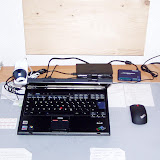 |
| My desktop / T43p & Co. |
Update (22.09.2009): recently I bought two new pieces - wireless desktop set Labtec Edge and IBM Port Replicator II. I want to post updated photos and short review ofn them soon... See my posts in September...